- 1Export URL
- 2Subscribe
- 3Check
- 4Alerts
Copy the Superhostem export first
In iCal export, select properties and visible details, then copy the generated URL. The link can expose personal details; share only what is needed. Check missing data in the reservation itself.
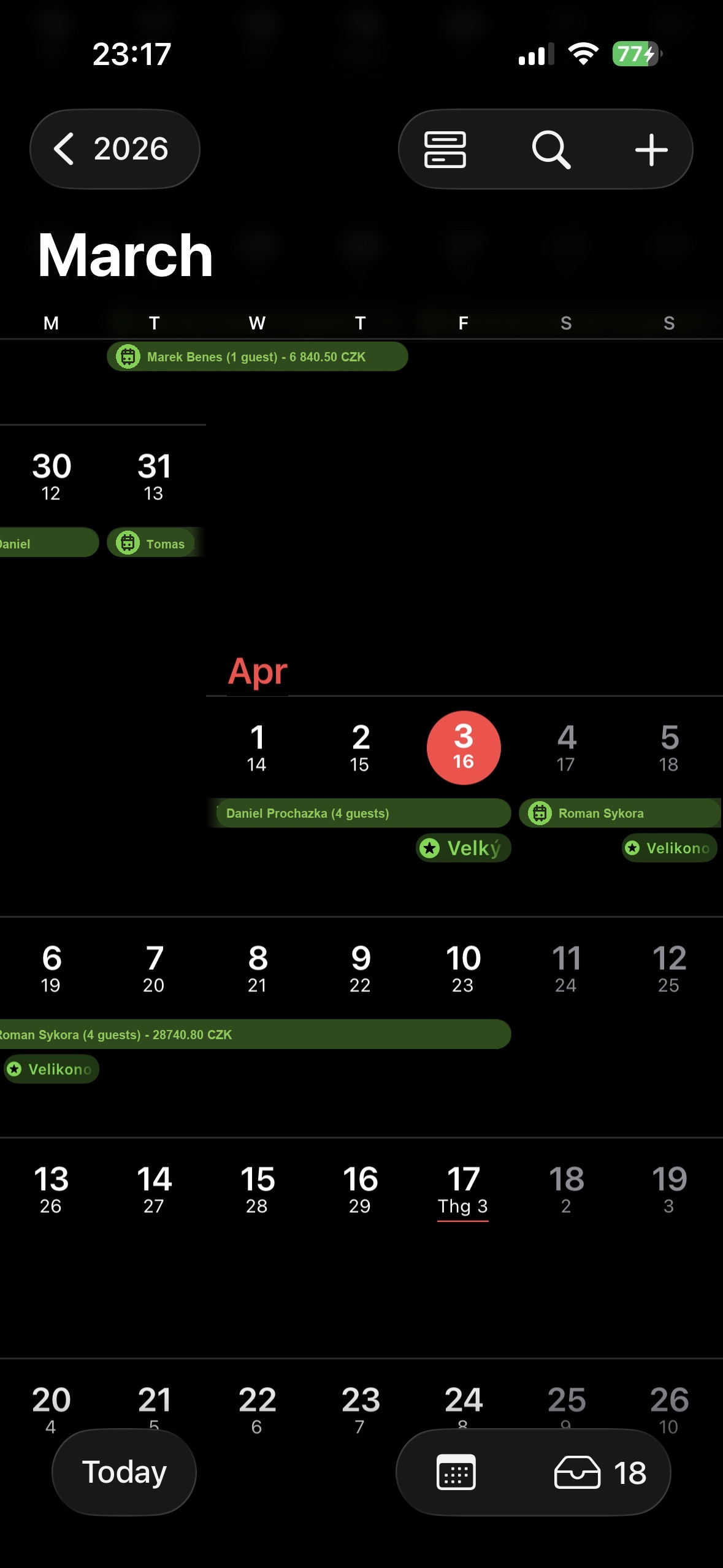
iPhone: add a calendar subscription
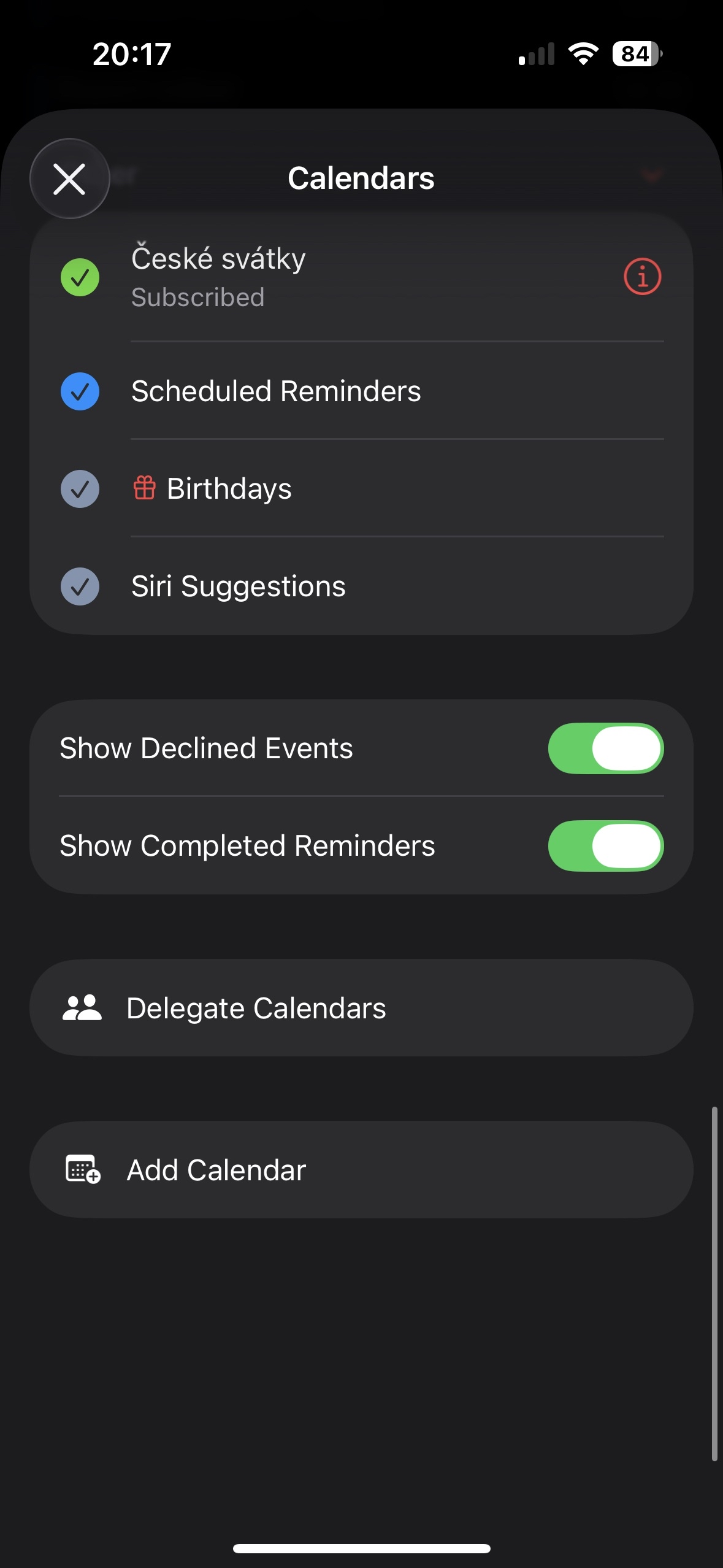
In Calendar, open Calendars → Add Calendar → Add Subscription Calendar. Enter the URL and follow the prompts; in iOS 26 find the subscription, name it and confirm. Labels may vary by version.
Google Calendar and Android
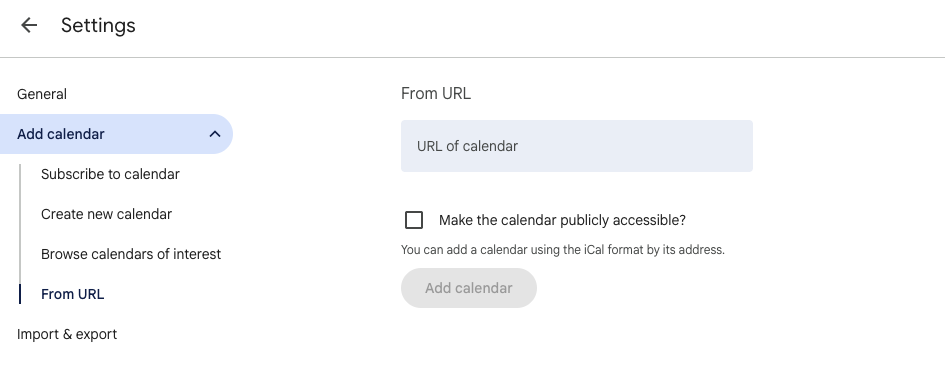
On a computer, open Google Calendar. Next to Other calendars, choose + → From URL and paste the export link. Use the same Google account on your phone and check calendar visibility. Add a new subscription through the website, not the mobile app.
Updates and alerts
The calendar app controls refresh timing and notification options. Check its settings; changes may not appear immediately. For team use and easy revocation, use a separate web link instead. The export is an overview; edit reservations in their source or relevant detail.