Initial consultation
Help connecting Airbnb and Booking.com accounts, entering UbyPort credentials and setting up automation.
Arrange a consultationGetting started with Superhostem
From adding a property to your first check-in. Go at your own pace: you have 3 free months to prepare and try everything.
Have the property address, guest contact details and, if available, a listing link ready. Add UbyPort access and municipality details in step 3. If you are starting an accommodation business, also check the required permissions and registrations.
Go to the first stepStep 1 of 5
Step 2 of 5
Start with Airbnb, Booking.com or another source that supports iCal. Supported booking emails can add more information. Add direct bookings manually.
iCal imports dates and blocked periods, usually not prices or complete guest details. For other platforms, look for iCal export and match each calendar to the correct property.
Airbnb: open the calendar for the listing → Availability → Connect calendars → connect to another website. Copy the complete export link ending in .ics.
Booking.com: in the Extranet, open the calendar for the correct property or unit → Sync calendars → copy the link. Choose Booked dates only in export settings and save.
Find your unique forwarding address in the application. Forward only reservation confirmations from supported platforms and test one email. It can add prices, reservation identifiers and other available information missing from iCal.
Gmail: Settings → See all settings → Forwarding and POP/IMAP → add a forwarding address. Complete verification using the application instructions. Then create a filter for reservation confirmations with a forwarding action. For Booking.com, enter @booking.com in From.
Seznam.cz: open Rules in mailbox settings. Add a rule for reservation confirmations from the platform and forward them to your Superhostem address. Check the result with one reservation.
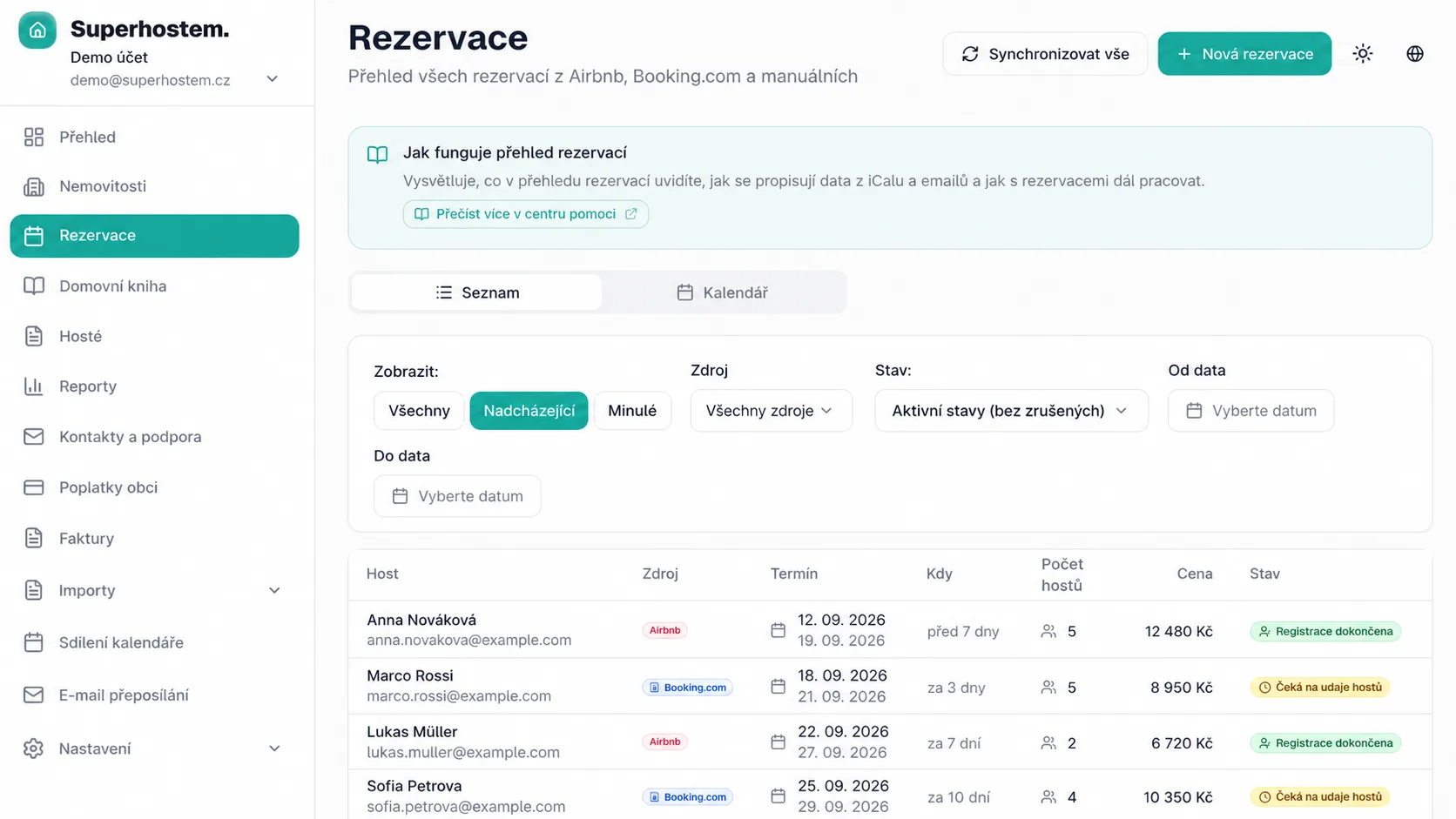
Check that the link is complete and belongs to the right listing. In Reservations, check the property, date and status filters, then use Sync all. Add stays without a connected source using New reservation.
Step 3 of 5
First arrange access for guest reporting and the details your municipality needs. The guest register then draws on bookings and completed online check-ins.
On the UbyPort home page, click the green “Žádost o registraci nového ubytovacího zařízení” button at the top. You do not need the sign-in form below it yet.
Open the UbyPort formFill in the accommodation details and address, then the operator and contact person. Check the contact email carefully. Prepare separate registrations for properties at different addresses.
In “Ostatní informace” at the bottom, select the number of login accounts and enter the application and its developer as shown. This also gives you access for reporting through Superhostem.
Check the form and generate the PDF request. Filling in the form alone does not complete registration: send the PDF to the Foreign Police Directorate. Attach it to a data-box message addressed to:
ybndqw9Send an electronically signed submission to reguby@pcr.cz following the police instructions. An ordinary unsigned email is not a listed submission method.
Send a printed request by registered post or deliver it in person: Ředitelství služby cizinecké policie, Olšanská 2, 130 51 Praha 3.
Once your request is processed, you will receive a document with your access details. Enter the web-service credentials in the relevant property’s UbyPort settings in Superhostem.
Do not register the property again. A regular portal login alone is not enough to submit data from the app. Request an account for automated data submission and include your IDUB.
Recipient:Foreign Police Service Directorate · data mailbox ybndqw9
Subject:Request for an account for automated data submission
Dear Sir or Madam,Download the request template (.txt)
For the accommodation establishment with IDUB [ENTER IDUB], I request an account for automated data submission through Superhostem (Superhostem s.r.o.).
Thank you.
[OPERATOR NAME]
Fill in the details in square brackets. This template is for already registered establishments. For a new registration, submit the PDF generated by UbyPort.
Use your existing credentials for the property. Switching to Superhostem does not require a new registration. Enter the credentials in the correct property's settings and verify the connection.
Not sure which access you have? Check it against the document from the police, or ask during your initial consultation.
Contact the municipality responsible for the property address about the stay fee. Check its registration form, rates, exemptions and deadlines. After registration, keep the registration number, variable symbol and payment details. Enter them and the municipality data-box ID under Properties → property details → Municipal fees. Rules vary by municipality.
Open Municipal fees and select the correct period; the default is usually the previous month. Expand stays and check nights, paying and exempt guests. Download and check the PDF before filing. Send via data box prepares a message you confirm after signing in to your data box. QR payment prepares payment details for your banking app. Then mark fees as paid and reported only when actually completed.
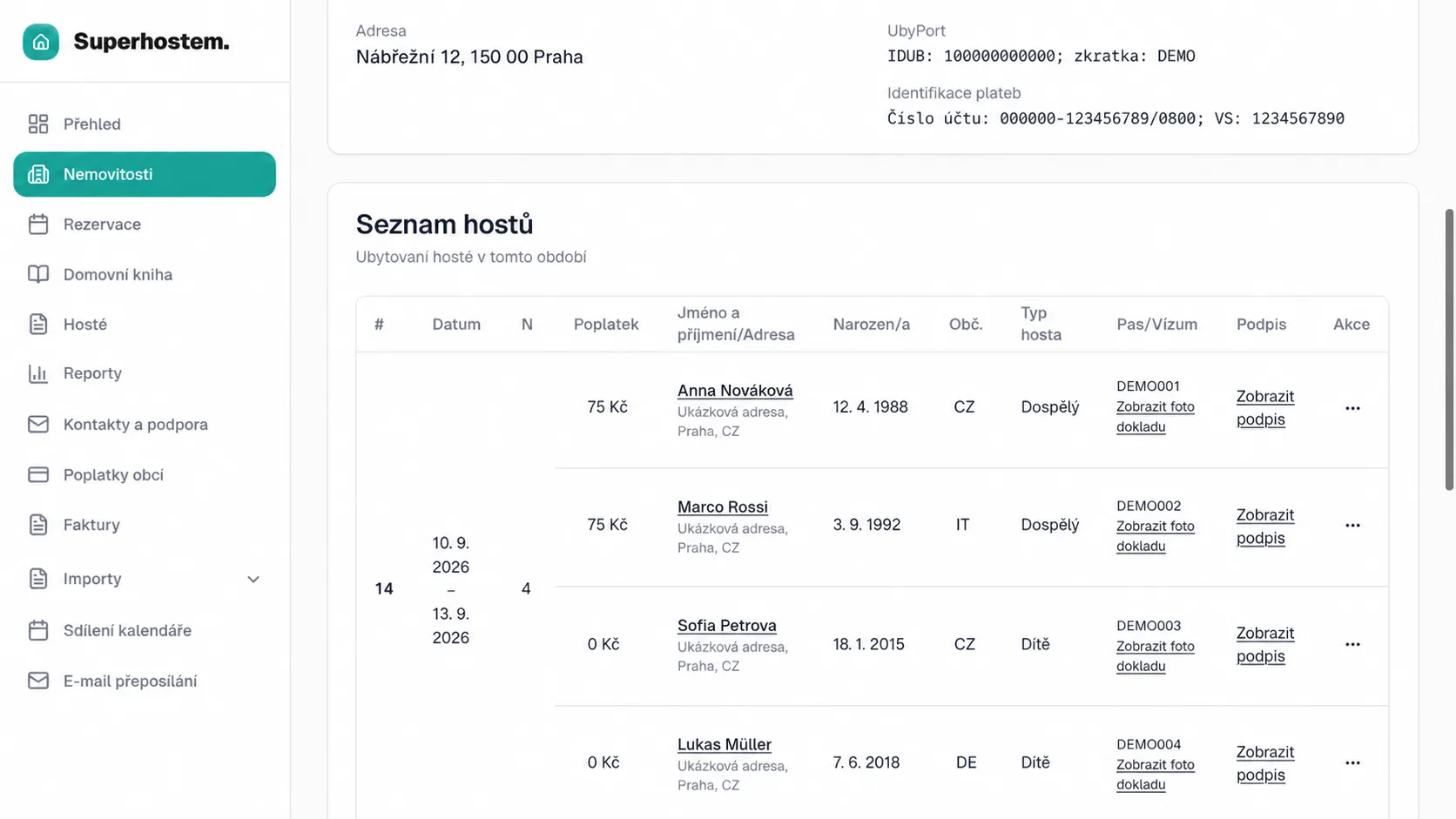
Registration-form details stay with the reservation. Check completeness and the correct property. In the guest register, choose a date range and prepare an overview or PDF. Review records regularly rather than only at month-end.
Based on the Superhostem Help Centre. Submitting an application:Czech Police instructions. Guide links open in a new tab.
Step 4 of 5
The reservation detail contains a prepared message with a registration link. Copy it into the platform chat or set up an automatic message. For property links, match stay availability to sending time: for example, three days before arrival in both places. A printed QR poster from property settings is an alternative on arrival.
Create a separate link for each cleaner or team. Choose allowed properties and necessary details; share prices and guest names only when needed. Others only need a browser link. You can subscribe to your own calendar in your phone’s calendar app.
Step 5 of 5
Open the guest link in a private browser window. Check the property, stay availability and message clarity. Check where submitted details appear. Before testing real reporting, decide which system will submit it to avoid duplicates.
Tick off what you have finished. We'll recommend the next step and link to its guide. Your progress applies to this open page.
Your next step
Add your first property. Your bookings, guest records and messages will be linked to it.
Go to adding a propertyA free initial consultation or complete setup for CZK 2,500.
Help connecting Airbnb and Booking.com accounts, entering UbyPort credentials and setting up automation.
Arrange a consultationWe handle app setup, booking connections, automation and registration with the authorities. Together, we'll prepare the required documents.
Get setup for CZK 2,500Prepare your operation before your first guests arrive.